 CatDays
 How many days until your anniversary? What day of the exam countdown is it? When’s payday? Instead of opening an app every time, put a countdown widget right on your iPhone Home Screen — see the days left at a glance, with a cat counting along beside you. This guide shows you the simplest way to add the CatDays countdown widget to your Home Screen.
There are two parts: first you add the countdown widget to your Home Screen, then you choose which countdown it shows.
This guide uses iOS 26. The exact screens may vary slightly on other versions, but the steps are largely the same.
Add the countdown widget to your Home Screen
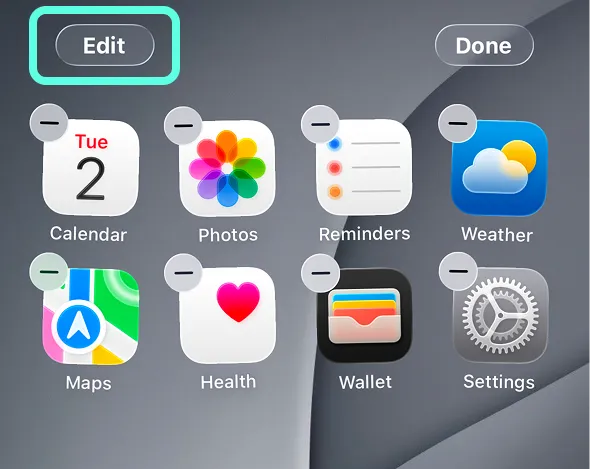
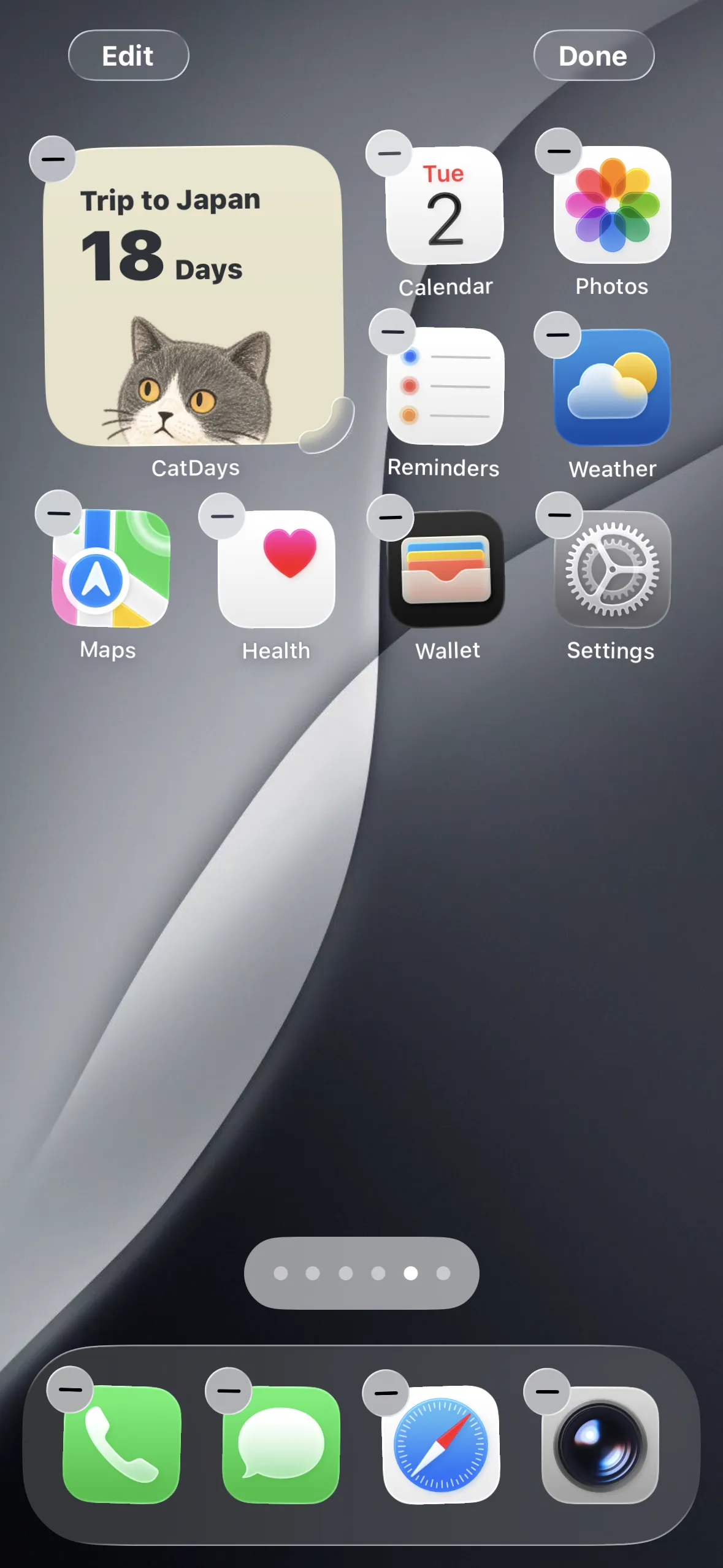
Enter edit mode
Touch and hold an empty area of the Home Screen until the icons jiggle, then tap Edit in the top-left corner.
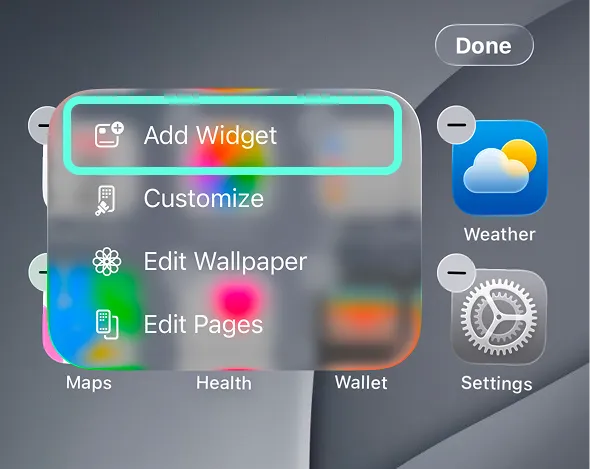
Tap "Add Widget"
In the menu that appears, tap Add Widget.
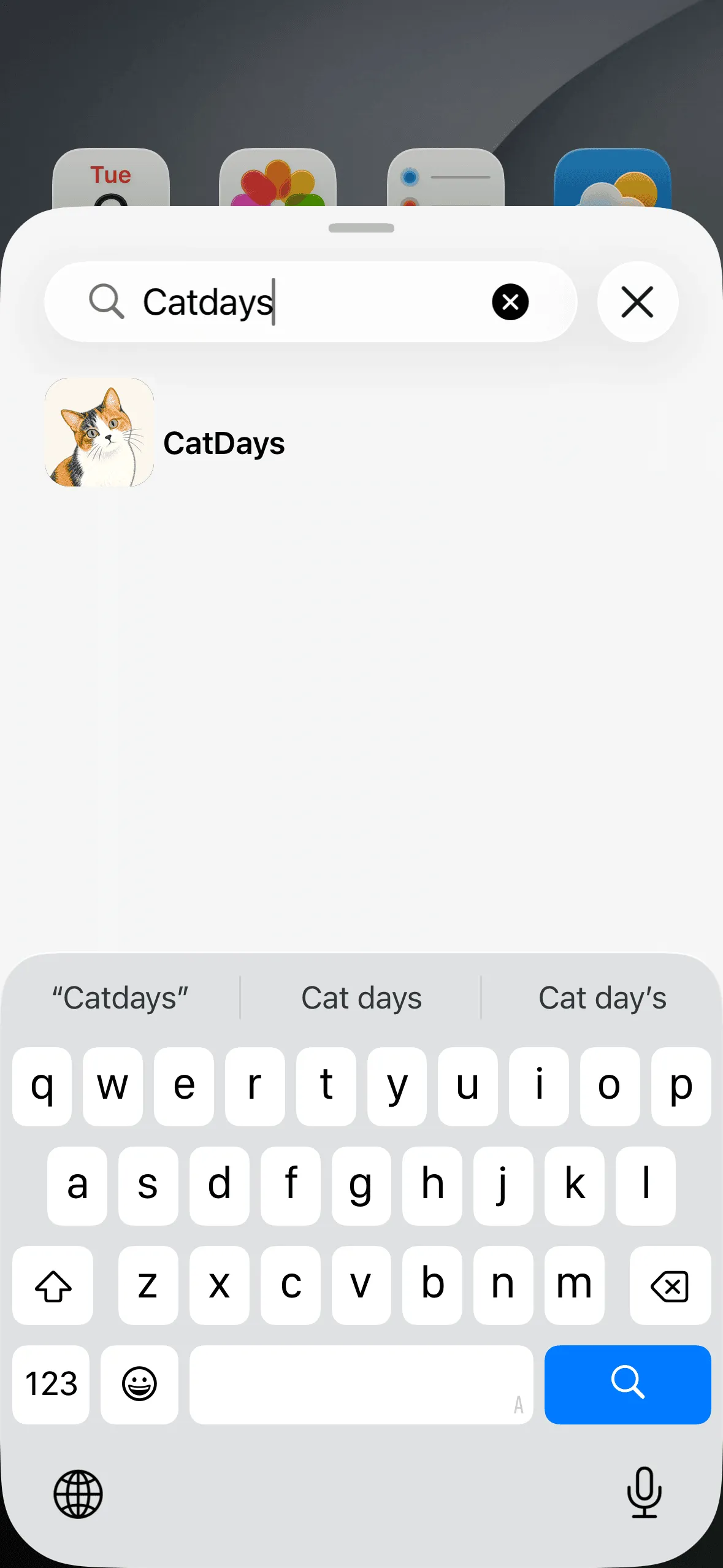
Search for an app
Type the app’s name in the search box and tap the result. Here we’ll use CatDays as an example.
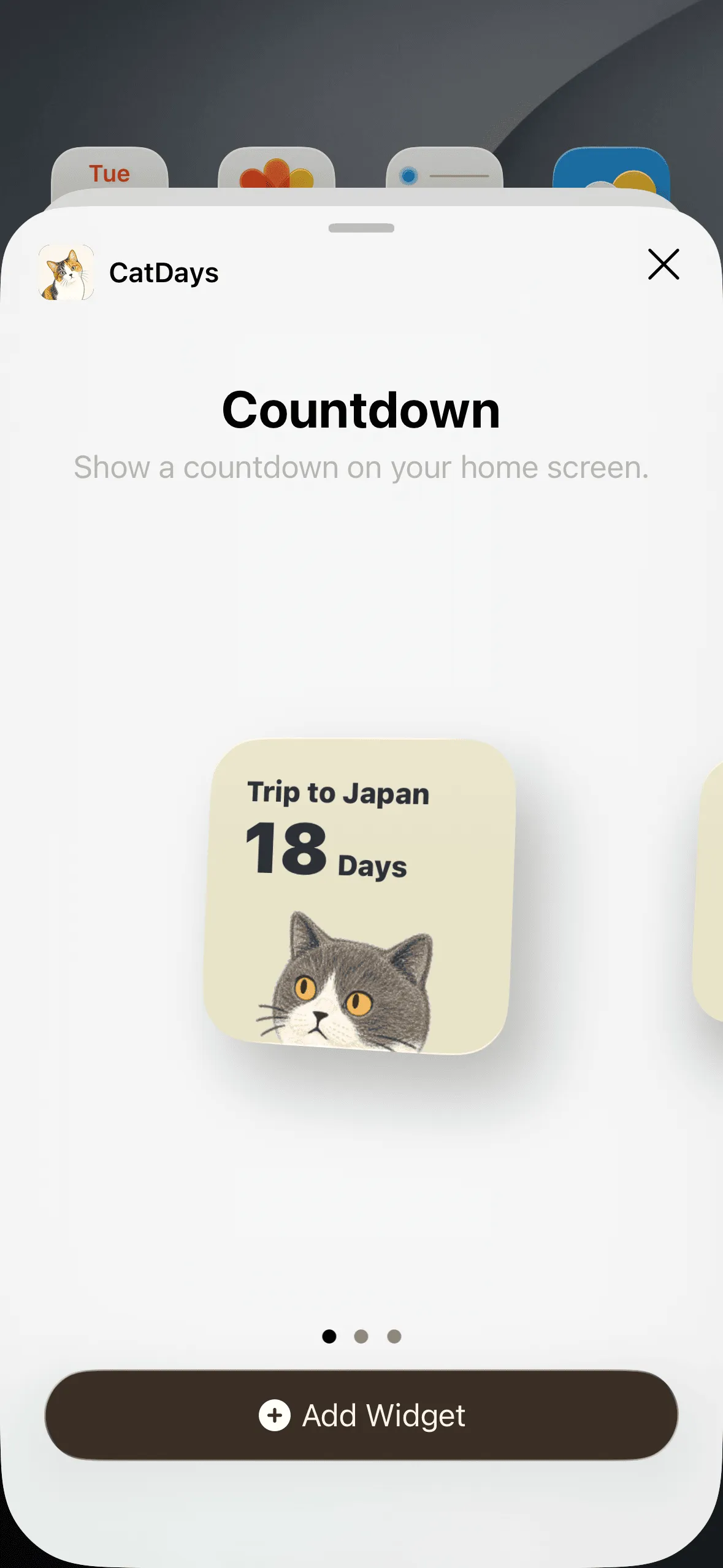
Pick a size and add it
Swipe left or right to choose the style you like, then tap Add Widget. CatDays comes in small and medium sizes — from a single big countdown to three at once, plus calendar widgets with a cat by your side. Want it on the Lock Screen? See “Put it on your Lock Screen too” at the end of this guide.
Finish up
The widget is now on your Home Screen — tap Done in the top-right to finish.
Change which countdown it shows
Once it’s added, you can swap the widget to whatever day you’re watching right now — no need to remove and re-add it.
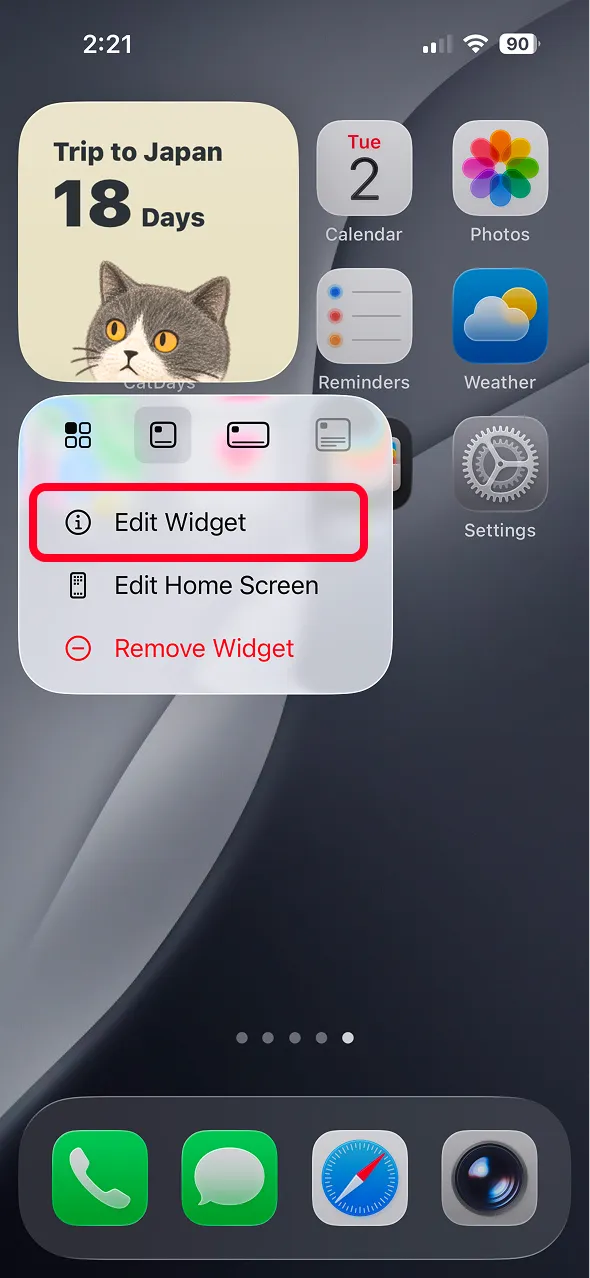
Open widget editing
Touch and hold the widget on your Home Screen, then tap Edit Widget.
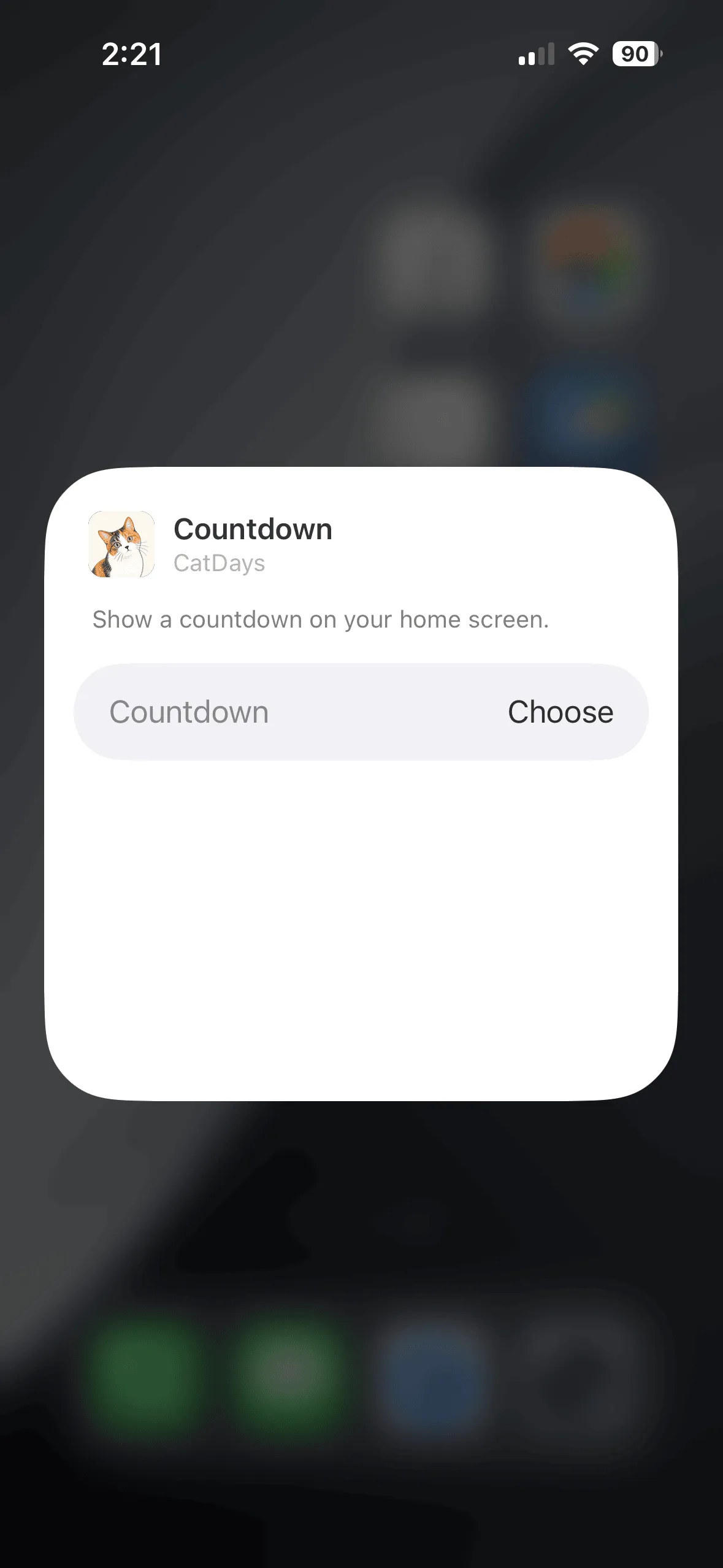
Tap "Choose"
Tap Choose to the right of the Countdown field.
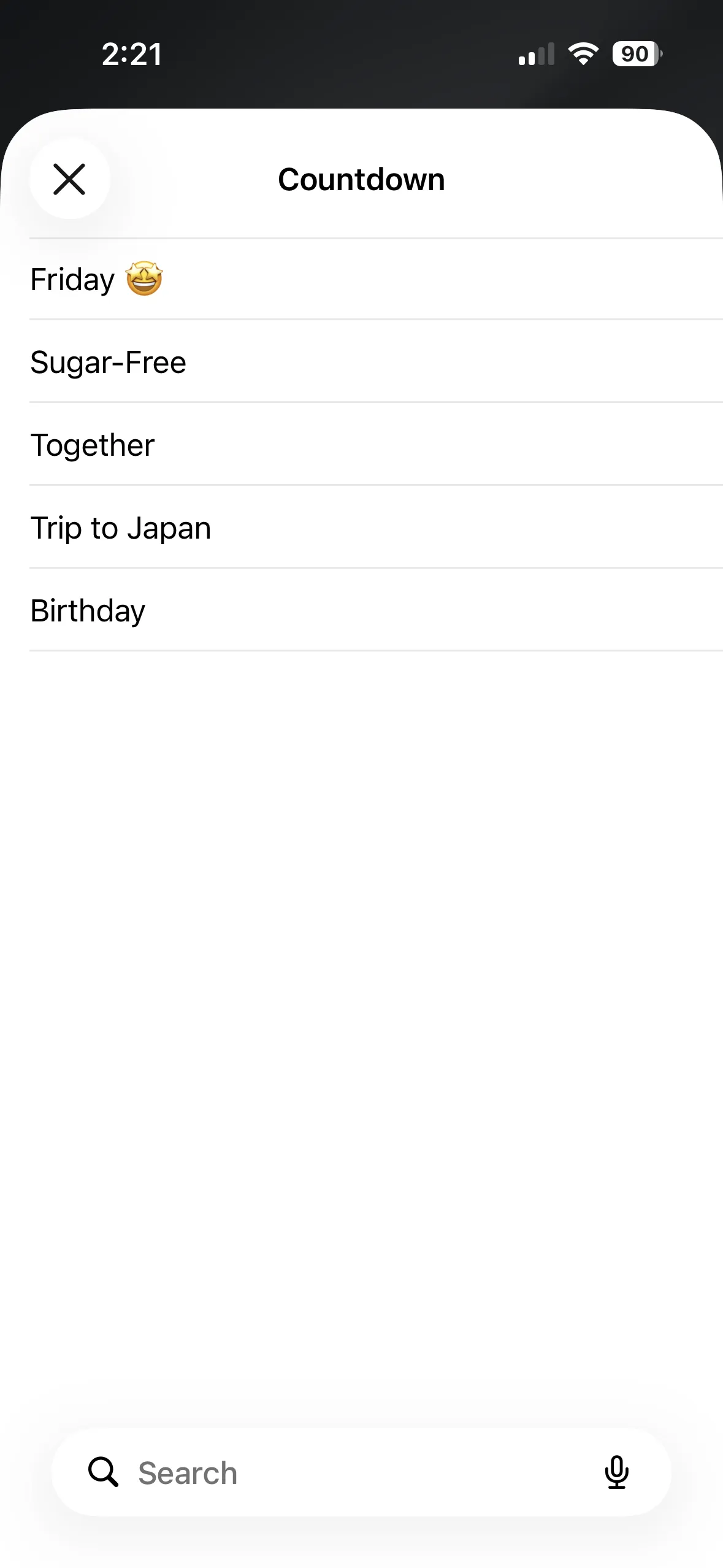
Pick a countdown
Choose the countdown you’d like to display from the list — the widget updates right away.
Put it on your Lock Screen too
Since version 1.3.0, countdowns can live on the Lock Screen as well — the days left are there before you even unlock. There are three layouts: circular, rectangular, and a rectangular one that shows three countdowns at once (text only; the cats stay on your Home Screen).
- Touch and hold the Lock Screen, tap Customize, then choose Lock Screen.
- Tap the widget area below the clock, search for CatDays, and pick a layout.
- Tap the widget to choose which countdown it shows, then tap Done in the top-right.
Put your first cat on the Home Screen
Don’t have CatDays yet? It’s a minimalist countdown and counter app — create a countdown for anything you care about (anniversaries, birthdays, exams, quitting smoking, payday), pair it with a cat you love, and let it keep you company right on your Home Screen.